
Customer Portal Licenses
As an end customer, you can view the license keys your vendor has issued to your organization directly from the Customer Portal.
Viewing license keys
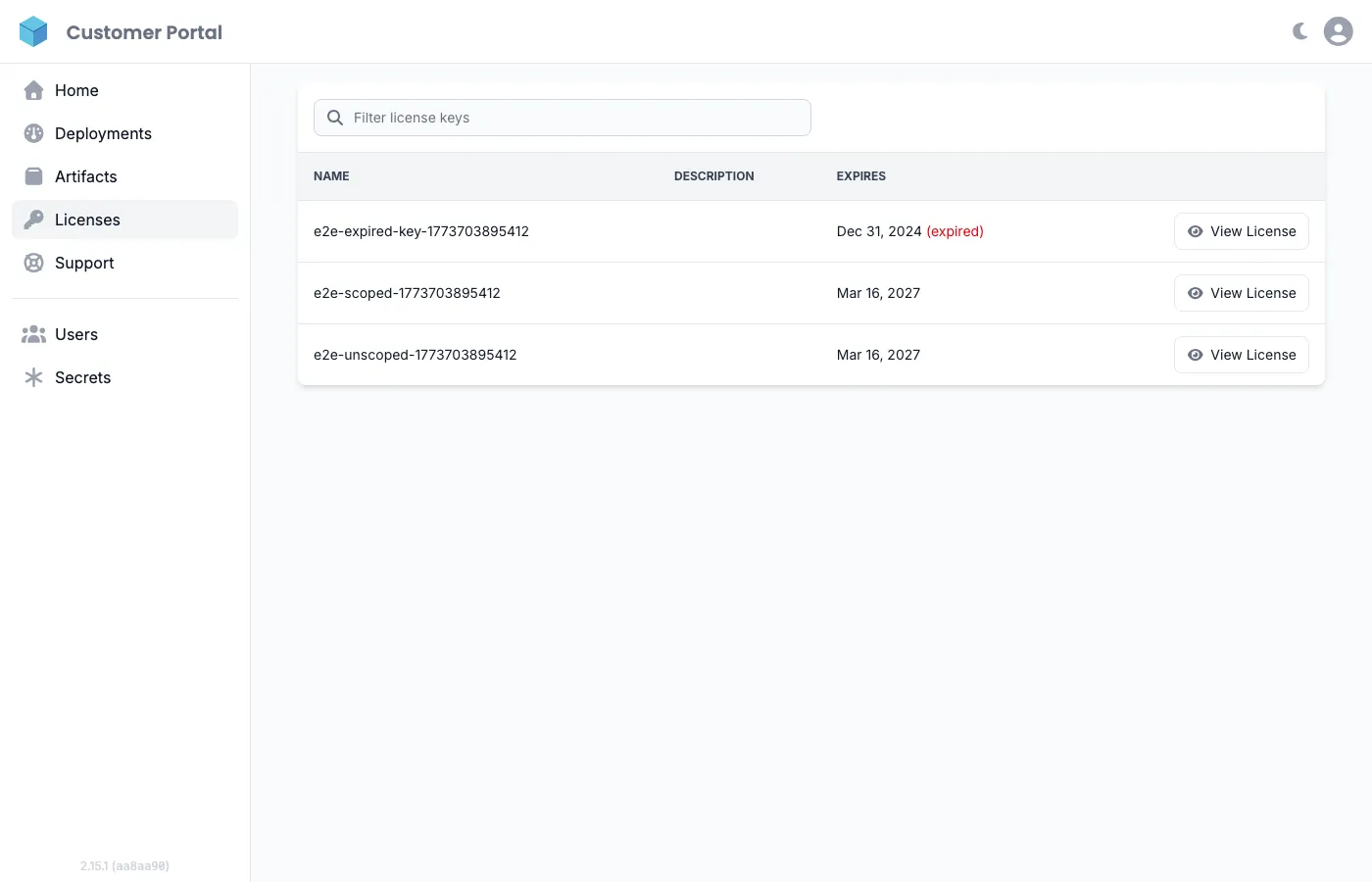
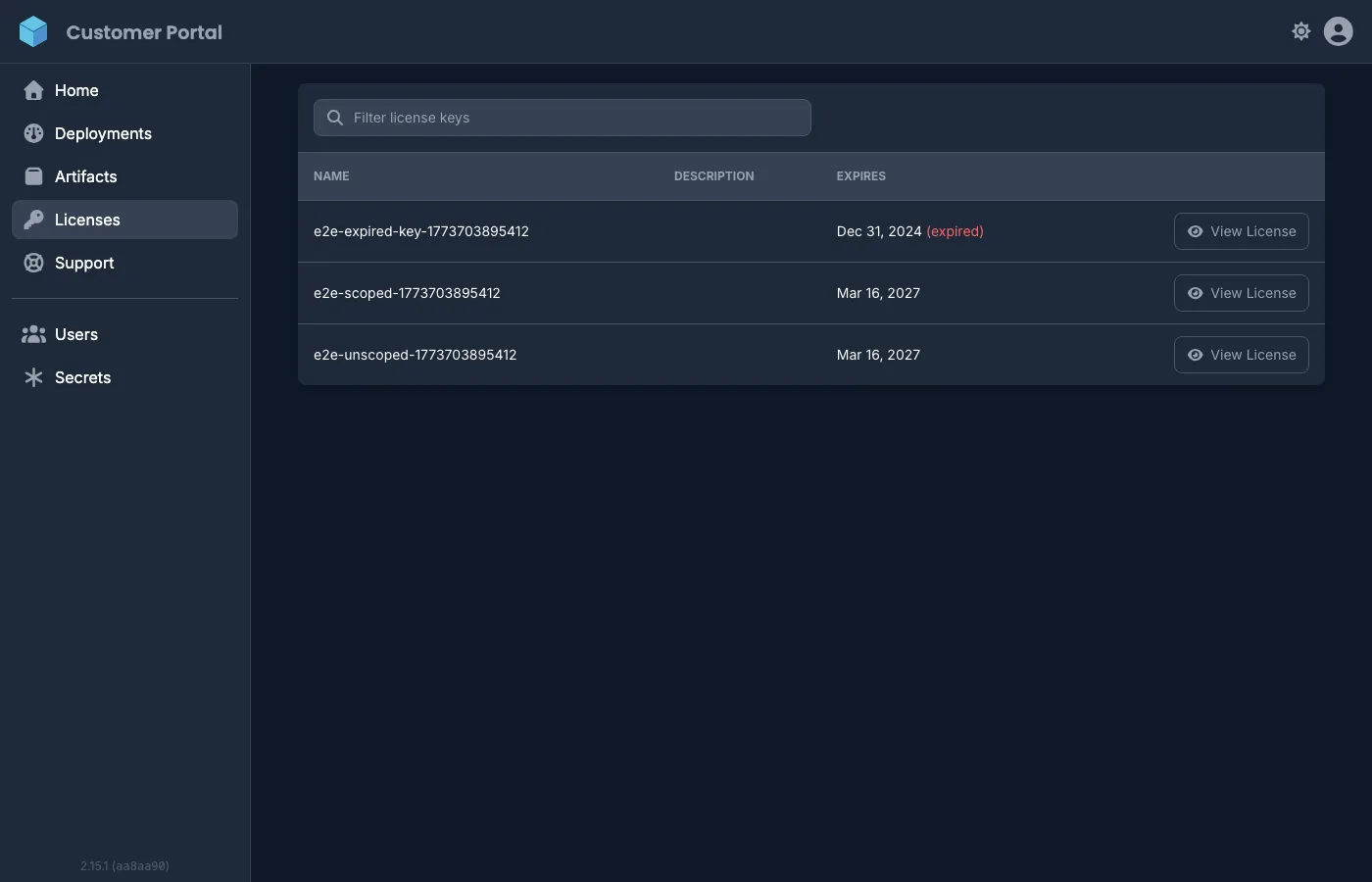
Section titled “Viewing license keys”Navigate to Licenses in the sidebar to see all license keys assigned to your organization. The list shows each key’s name, description, and expiration date. Expired keys are marked with an (expired) label.
Referencing a license key in deployments
Section titled “Referencing a license key in deployments”If you deploy via Distr agents, the Reference column shows the template variable to use in your deployment’s environment file or Helm values: {{ .LicenseKeys.MY_LICENSE_KEY }}
Distr resolves this to the signed JWT token automatically at deploy time, so you do not need to copy and paste anything by hand. See Referencing license keys in deployments for full details.
Getting the token
Section titled “Getting the token”Click View License on any key to view its signed JWT token. Copy the token and use it in your application environment. The token works offline and requires no callback to Distr at verification time.
For details on how to inject the token into your application (via environment variables, Helm values, or secrets), see Referencing license keys in deployments.
What is in the token
Section titled “What is in the token”Each license token is a signed JWT containing:
- Validity period (not before / expiration dates)
- Custom claims defined by your vendor (plan tier, seat count, feature flags, etc.)
Your application verifies the token using the vendor’s public key. See Verifying tokens for implementation details.