
Customer Portal Deployments
As an end customer, you can deploy and manage applications with Distr agents directly from the Customer Portal.
This guide walks you through the deployment agent quickstart from the Customer Portal.
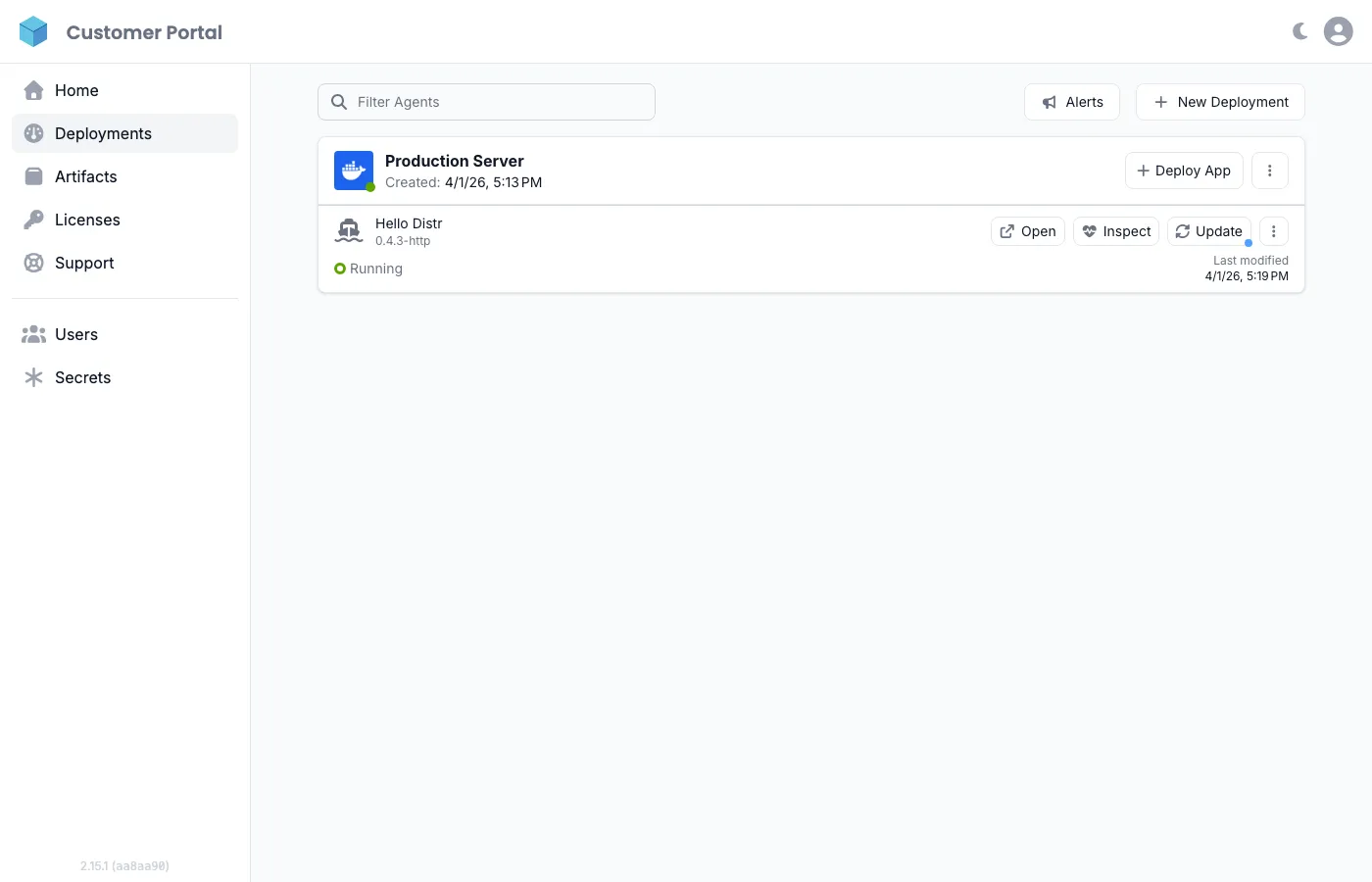
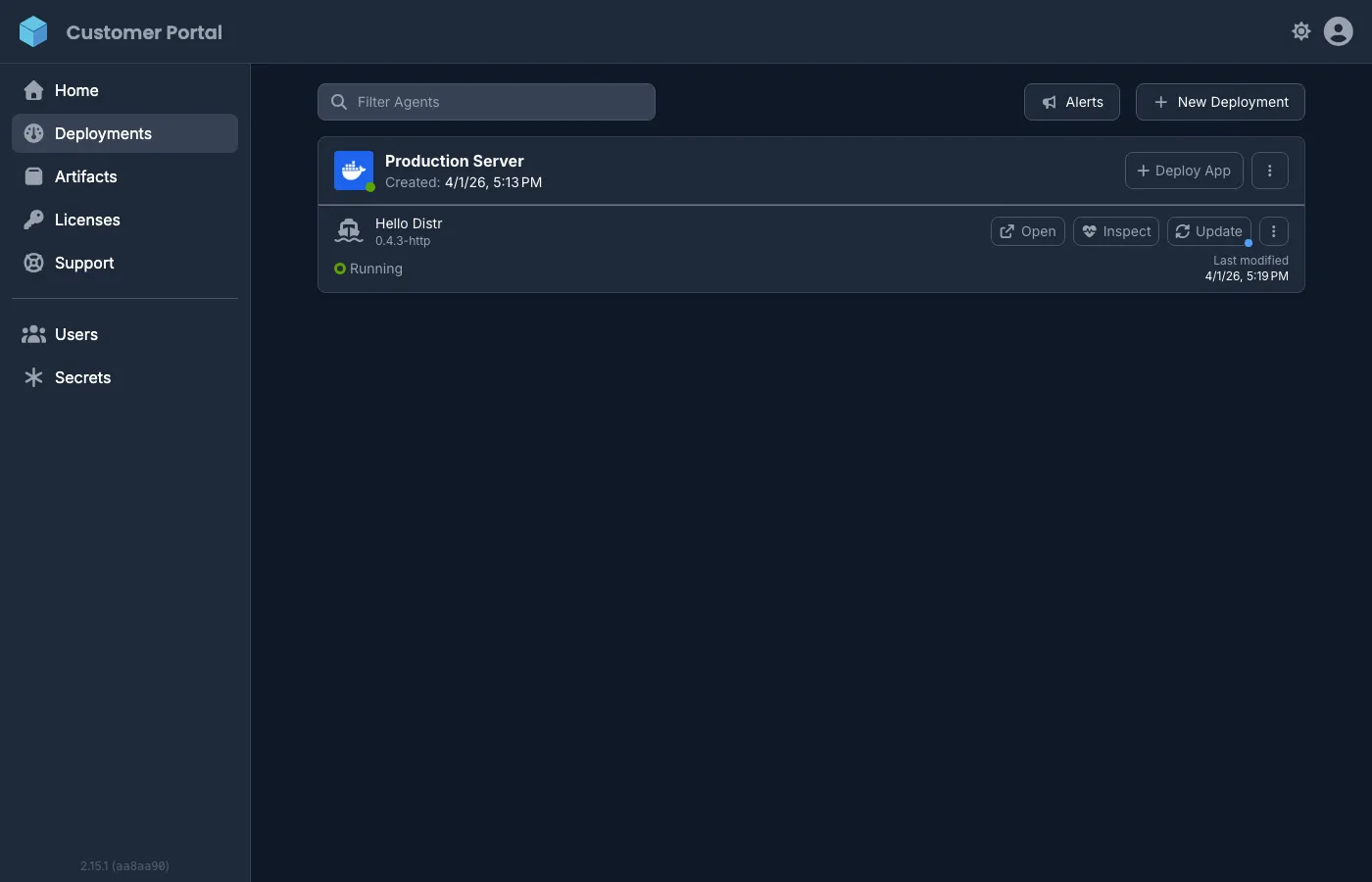
Deployment agent quickstart from the Customer Portal
Section titled “Deployment agent quickstart from the Customer Portal”Step 1: Select application
Section titled “Step 1: Select application”Navigate to Deployments in the sidebar and click on the + New Deployment button.
Choose the application you want to deploy.
Step 2: Deployment configuration
Section titled “Step 2: Deployment configuration”Give your deployment a descriptive name. This name will help you identify and manage the deployment later.
For Helm applications, you’ll also need to specify the Kubernetes namespace where it should be deployed. Make sure the namespace exists in your cluster before proceeding.
Step 3: Application configuration
Section titled “Step 3: Application configuration”Configure the environment variables for your Docker Compose application. These variables will be passed to the docker compose process via the --env-file argument.
For more information on how to use them, refer to our guide on working with environment variables.
You can also enable Docker Swarm mode for deployments that should run in swarm mode. See Docker Swarm for more details. Additionally, you can enable container log collection to view application logs directly in the portal. Learn more about Container Logs.
Step 4: Deploy
Section titled “Step 4: Deploy”Review your configuration and click Create Deployment to proceed to the deployment page.
Step 5: Monitor deployment status
Section titled “Step 5: Monitor deployment status”View real-time updates as your deployment initializes. The status indicator shows the current health:
- Running: The deployment is running (no healthchecks configured)
- Healthy: The deployment is running and all healthchecks are passing
- Error: Something is wrong, check the logs for details
- Stale: The agent has not reported this deployment’s health in the last 60 seconds
For the full list of statuses, see Deployment Status.
Step 6: Access environment logs
Section titled “Step 6: Access environment logs”Click the Inspect button on a deployment to view application logs directly from the portal. Container logs must be enabled per deployment. Use the ⋮ menu to toggle log collection on or off.
Step 7: Update deployments
Section titled “Step 7: Update deployments”Click the Update button to modify configuration values and update running deployments as needed. You can change environment variables, switch application versions, or adjust other settings.
Alerts
Section titled “Alerts”If your vendor has enabled alerts for your organization, you can configure deployment health notifications from the Alerts button in the Deployments view. Set up alert rules for deployment status changes and resource usage thresholds, and choose which users in your organization should receive email notifications.
For details on alert types and configuration, see Alerts.
Important notes
Section titled “Important notes”- A single agent can manage multiple deployments in the same target environment
- To remove a deployment, first undeploy it before deletion
- If a deployment target shows Stale status, you can reconnect by generating new credentials from the ⋮ menu