
Vendor Portal
The Vendor Portal is the Distr UI for vendors. It gives you access to all Distr features, including application creation, artifact registry management, and monitoring of end-customer deployment states. The Customer Portal gives end customers a simpler interface where they configure and manage their deployments. It also centralizes release information and instructions for operating the vendor’s software.
Key Features
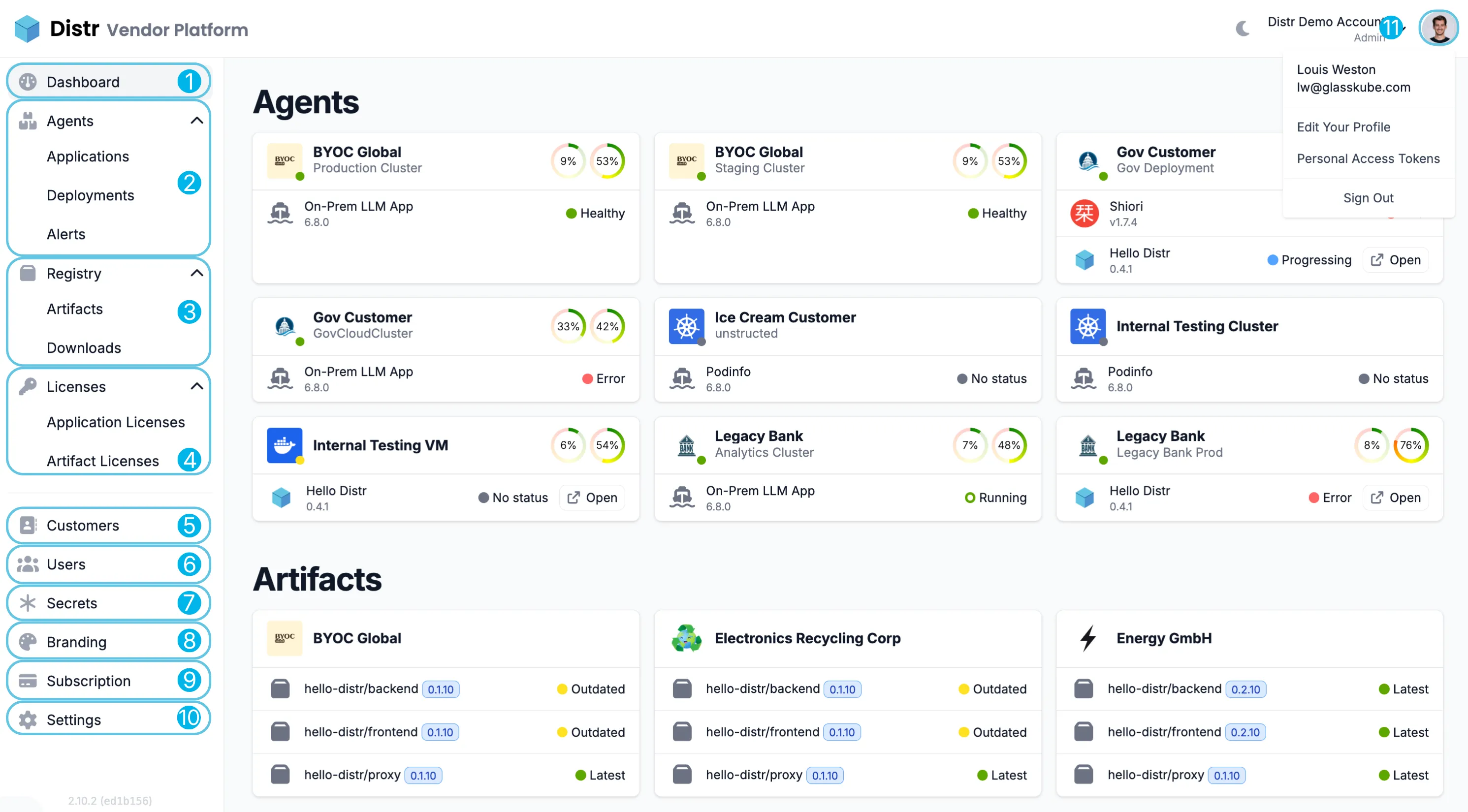
Section titled “Key Features”- Dashboard: View health status for controllers and artifacts across all deployments at a glance.
- Controllers: Add applications, create and manage deployments, set up alerts, monitor deployment health, and view deployment logs. See the Controllers section for details.
- Registry: Browse and view consumption metrics of your artifacts in the Registry section.
- Licenses: Manage entitlements and license keys per customer. Application Entitlements control which application versions customers can deploy, Artifact Entitlements control registry access, and License Keys let you issue signed tokens your application can use to enforce usage limits and feature access.
- Customers: Create and manage customer organizations, invite users, manage secrets, and control features per customer. See the Customer Management guide for a detailed walkthrough; to invite users and assign roles, see RBAC: Inviting Customer Organization Users.
- Support: Receive support requests and review the diagnostic data customers attach to them. Customers run a one-time collection script against their Docker host or Kubernetes cluster, and the collected logs, configuration and resources appear here for review and discussion. See Support Bundles for details.
- Users: Add and manage internal team members for your Distr vendor account.
- Secrets: Manage sensitive configuration values and credentials that can be securely shared with customer deployments.
- Customer Portal: White-label the customer portal with your branding and provide customers with self-service instructions and documentation in the Branding tab. Admins set up the customer portal domain and its identity providers in the Domain & Sign-in tab.
- Settings: Configure your organization name, registry slug and custom domains, and manage organization deletion. Admins view the current plan, usage limits and billing information in the Subscription tab. With vendor billing enabled, they also manage license templates and the Stripe webhook in the Billing tab.
- Account Menu: Access your personal account settings from the dropdown in the top-right corner. Update your profile information or create Personal Access Tokens for API, SDK, and registry authentication to integrate Distr into your CI/CD pipelines.