
Deploying to Amazon ECS
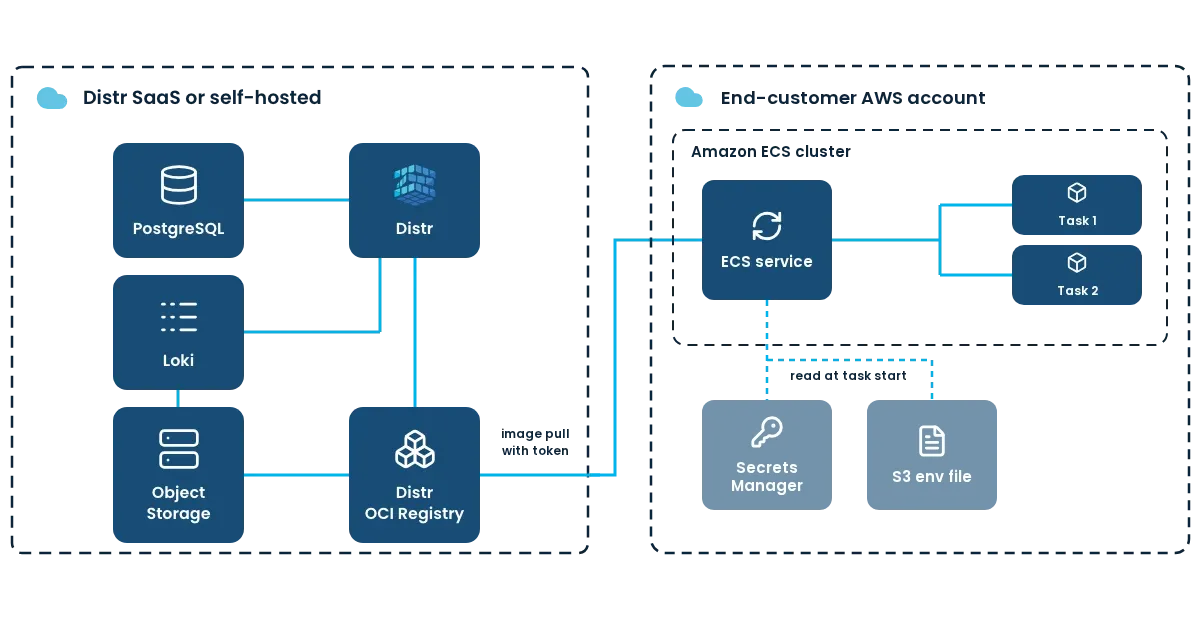
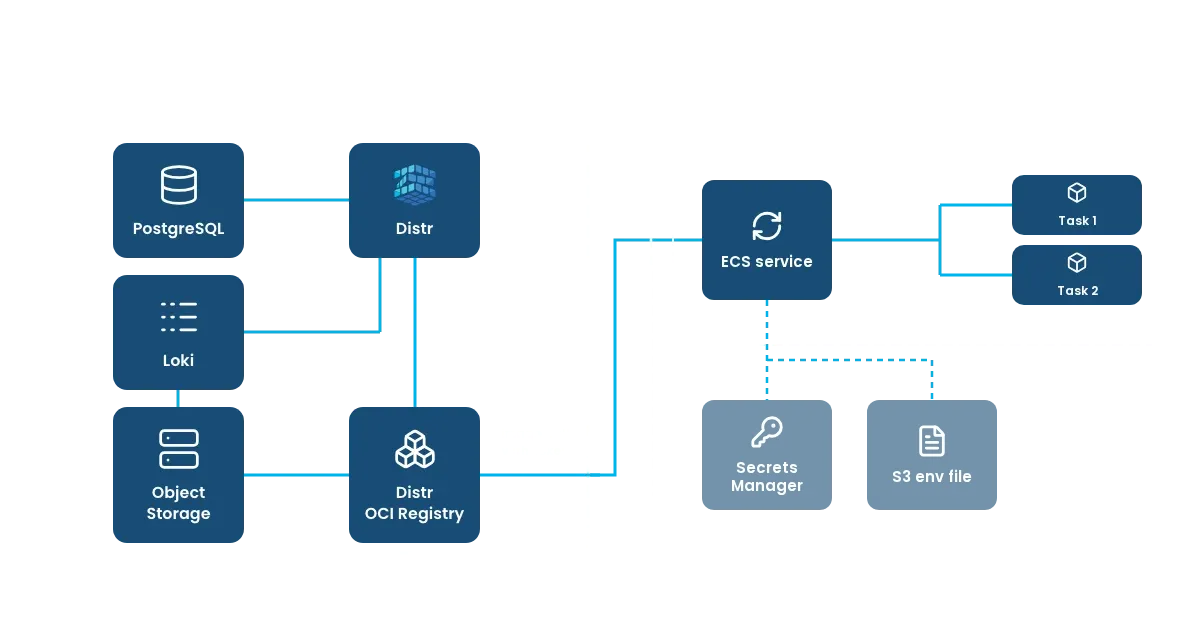
Many enterprise customers standardize on Amazon Elastic Container Service (ECS) and want to run your application on the clusters they already operate. Distr supports this through its artifact registry: you publish your container images to Distr and decide per customer which images and tags they are entitled to, and the customer’s ECS tasks pull those images directly from Distr with a Personal Access Token.
This follows the fully self-managed distribution model. Your customer runs the ECS cluster, the task definitions and the services in their own AWS account, the same way they would install a Helm chart on a Kubernetes cluster they operate themselves. You stay in control of what they can pull, and you see which versions they pull.
How Distr and Amazon ECS work together
Section titled “How Distr and Amazon ECS work together”You, the vendor, push your images to the Distr registry, grant them to a customer with an artifact entitlement, optionally issue a license key and publish the installation instructions on the welcome page of the Customer Portal.
Your customer creates a Personal Access Token in the Customer Portal, stores it in AWS Secrets Manager and references it from the ECS task definition. ECS then authenticates against the Distr registry whenever it pulls the image to start a task.
| What | Where it lives |
|---|---|
| Container images | Distr registry |
| Which images and tags may be pulled | Artifact entitlement in Distr |
| Registry credentials | AWS Secrets Manager in the customer account |
| Application configuration | Environment of the ECS task definition |
| License token | Environment of the ECS task definition |
| Cluster, task definitions, services | Amazon ECS in the customer’s AWS account |
Vendor setup: publishing your application for ECS customers
Section titled “Vendor setup: publishing your application for ECS customers”1. Push your images to the Distr registry
Section titled “1. Push your images to the Distr registry”Configure your registry slug, authenticate with a Personal Access Token and push your images:
docker push registry.distr.sh/acme/acme-app:1.4.02. Grant access with an artifact entitlement
Section titled “2. Grant access with an artifact entitlement”Create the customer and an artifact entitlement for the images your application consists of. Choose All tags and future tags so that every new release becomes available to the customer as soon as you push it, or select specific tags to keep a customer on a release line.
3. Issue a license key
Section titled “3. Issue a license key”If your application enforces seats, plans or features, create a license key for the customer. The customer copies the signed token from the Customer Portal and passes it to the container as an environment variable, and your application verifies it offline against your public key.
4. Publish the ECS installation instructions
Section titled “4. Publish the ECS installation instructions”The welcome page, which you edit under Branding, is the first thing your customers see when they log in to the Customer Portal. Use it to hand over everything an ECS installation needs:
- The full image references, including the registry host.
- Every environment variable your application reads, with a sensible default and a description.
- The name of the environment variable that receives the license token.
- Every value that belongs in a secret rather than in the task definition, such as a database password.
- The recommended CPU, memory, container port and health check.
- A link to the customer setup of this guide.
A welcome page for an application called Acme App could look like this:
## Installing Acme App on Amazon ECS
Image: `registry.distr.sh/acme/acme-app:1.4.0`
Recommended task size: 0.5 vCPU, 1 GB memory. The container listens on port 8080and answers health checks on `/healthz`.
Set these variables in the `environment` of the task definition:
| Variable             | Example                    | Description                                      || -------------------- | -------------------------- | ------------------------------------------------ || `ACME_BASE_URL`      | `https://acme.example.com` | Public URL under which your users reach Acme App || `ACME_DATABASE_HOST` | `acme-db.internal`         | Hostname of your PostgreSQL instance             || `ACME_DATABASE_NAME` | `acme`                     | Name of the PostgreSQL database                  || `ACME_LOG_LEVEL`     | `info`                     | One of `debug`, `info`, `warn`, `error`          || `ACME_LICENSE_TOKEN` | `eyJhbGciOi...`            | Your license token from the Licenses page        |
Store the password of your PostgreSQL user in AWS Secrets Manager and pass itas `ACME_DATABASE_PASSWORD` through the `secrets` of the task definition.
Follow the [Amazon ECS guide](https://distr.sh/docs/integrations/aws-ecs/#customer-setup-running-the-application-on-amazon-ecs)for the step by step setup.
Customer setup: running the application on Amazon ECS
Section titled “Customer setup: running the application on Amazon ECS”Your customers perform these steps in their own AWS account.
The examples use the image and settings from the welcome page above, the AWS Region eu-central-1 and the account ID 123456789012.
Before you start, make sure that:
- You have an ECS cluster with the Fargate or the EC2 launch type and the AWS CLI configured for that account.
- Your tasks can reach the Distr registry over HTTPS, either from a public subnet with a public IP address or from a private subnet with a NAT gateway.
1. Create a Personal Access Token for the registry
Section titled “1. Create a Personal Access Token for the registry”In the Customer Portal, click your user icon in the top right corner and select Personal Access Tokens.
Create a token with the role read_only, a label such as ecs-production and an expiry date, and copy it.
The token acts on behalf of the user who created it, so consider creating it with a dedicated user of your organization: the cluster then keeps pulling when a team member leaves.
Check that the token can pull the image before you hand it to ECS:
echo "YOUR-ACCESS-TOKEN" | docker login registry.distr.sh --password-stdin -u -docker pull registry.distr.sh/acme/acme-app:1.4.02. Store the registry credentials in AWS Secrets Manager
Section titled “2. Store the registry credentials in AWS Secrets Manager”ECS reads private registry credentials from a Secrets Manager secret with the keys username and password.
Distr identifies you by the token alone, so the username can be any non-empty value:
aws secretsmanager create-secret \ --name acme/distr-registry \ --secret-string '{"username":"distr","password":"YOUR-ACCESS-TOKEN"}'Note the ARN in the output: the task definition references it.
3. Store the database password in AWS Secrets Manager
Section titled “3. Store the database password in AWS Secrets Manager”Store the database password, and any other secret your vendor lists, in a secret of its own:
aws secretsmanager create-secret \ --name acme/database-password \ --secret-string 'YOUR-DATABASE-PASSWORD'4. Grant the task execution role access
Section titled “4. Grant the task execution role access”ECS pulls the image and reads the secrets with the task execution role before the container starts.
Save this policy as acme-app-execution-policy.json, with the ARNs of your secrets:
{ "Version": "2012-10-17", "Statement": [ { "Effect": "Allow", "Action": "secretsmanager:GetSecretValue", "Resource": [ "arn:aws:secretsmanager:eu-central-1:123456789012:secret:acme/distr-registry-AbCdEf", "arn:aws:secretsmanager:eu-central-1:123456789012:secret:acme/database-password-MnOpQr" ] } ]}Attach it to the execution role next to the managed AmazonECSTaskExecutionRolePolicy:
aws iam put-role-policy \ --role-name ecsTaskExecutionRole \ --policy-name acme-app \ --policy-document file://acme-app-execution-policy.jsonIf your secrets are encrypted with a customer managed KMS key, also allow kms:Decrypt on that key.
5. Register the task definition
Section titled “5. Register the task definition”The repositoryCredentials of the container definition tell ECS to authenticate with the secret from step 2.
The environment holds the configuration from the welcome page and the license token from the Licenses page of the Customer Portal, and the secrets pass the database password from step 3:
{ "family": "acme-app", "requiresCompatibilities": ["FARGATE"], "networkMode": "awsvpc", "cpu": "512", "memory": "1024", "runtimePlatform": { "cpuArchitecture": "X86_64", "operatingSystemFamily": "LINUX" }, "executionRoleArn": "arn:aws:iam::123456789012:role/ecsTaskExecutionRole", "containerDefinitions": [ { "name": "acme-app", "image": "registry.distr.sh/acme/acme-app:1.4.0", "essential": true, "repositoryCredentials": { "credentialsParameter": "arn:aws:secretsmanager:eu-central-1:123456789012:secret:acme/distr-registry-AbCdEf" }, "portMappings": [{"containerPort": 8080, "protocol": "tcp"}], "environment": [ {"name": "ACME_BASE_URL", "value": "https://acme.example.com"}, {"name": "ACME_DATABASE_HOST", "value": "acme-db.internal"}, {"name": "ACME_DATABASE_NAME", "value": "acme"}, {"name": "ACME_LOG_LEVEL", "value": "info"}, {"name": "ACME_LICENSE_TOKEN", "value": "YOUR-LICENSE-TOKEN"} ], "secrets": [ { "name": "ACME_DATABASE_PASSWORD", "valueFrom": "arn:aws:secretsmanager:eu-central-1:123456789012:secret:acme/database-password-MnOpQr" } ] } ]}Save it as acme-app-task.json and register it:
aws ecs register-task-definition --cli-input-json file://acme-app-task.jsonYou can also load the license token from AWS Secrets Manager through the secrets and the configuration from an environment file in S3 through environmentFiles, but keeping everything in the task definition is the recommended approach.
For the EC2 launch type, set requiresCompatibilities to EC2 here and --launch-type to EC2 when you create the service in the next step; registry authentication works the same way.
Terraform (repositoryCredentials inside container_definitions of aws_ecs_task_definition) and CloudFormation (RepositoryCredentials of a container definition) accept the same fields.
6. Create the service
Section titled “6. Create the service”aws ecs create-service \ --cluster production \ --service-name acme-app \ --task-definition acme-app \ --desired-count 2 \ --launch-type FARGATE \ --network-configuration 'awsvpcConfiguration={subnets=[subnet-0a1b2c3d4e5f67890],securityGroups=[sg-0a1b2c3d4e5f67890],assignPublicIp=DISABLED}'The example runs the tasks in private subnets with a NAT gateway.
Fargate tasks in a public subnet need assignPublicIp=ENABLED instead, or they cannot reach the registry.
Add --load-balancers to put the service behind an Application Load Balancer, as with any other ECS service.
The service events show whether the tasks started:
aws ecs describe-services \ --cluster production \ --services acme-app \ --query 'services[0].events[:5]'Updating the application on ECS
Section titled “Updating the application on ECS”New versions appear on the Artifacts page of the Customer Portal as soon as your vendor publishes them.
To roll one out, change the image in acme-app-task.json to the new tag, register the task definition again and point the service at the new revision.
A change to the environment, such as a renewed license token, is rolled out the same way:
aws ecs register-task-definition --cli-input-json file://acme-app-task.jsonaws ecs update-service \ --cluster production \ --service acme-app \ --task-definition acme-appECS replaces the running tasks with a rolling deployment.
Reference a concrete version rather than a tag like latest: tags in the Distr registry are immutable by default, so a version always resolves to the same image and every task of a deployment runs the same code.
Every revision of the task definition holds both the image and its configuration, so pointing the service back at an earlier revision rolls back both.
ECS reads the secrets only when a task starts.
After you store a new password with aws secretsmanager put-secret-value, start a new deployment to apply it:
aws ecs update-service \ --cluster production \ --service acme-app \ --force-new-deploymentRotating the registry token without downtime
Section titled “Rotating the registry token without downtime”ECS uses the registry credentials whenever it pulls the image, which includes scaling out and replacing unhealthy tasks, so renew the token before it expires. A Personal Access Token can hold two valid tokens at once, which lets you rotate it without an interruption:
-
Click Add token on the token’s page in the Customer Portal and copy the new token.
-
Store it in the existing secret:
Terminal window aws secretsmanager put-secret-value \--secret-id acme/distr-registry \--secret-string '{"username":"distr","password":"YOUR-NEW-ACCESS-TOKEN"}' -
Delete the old token once its “last used” timestamp stops moving.
Running tasks are not affected, since the credentials are only needed to pull the image.
Download analytics for ECS installations
Section titled “Download analytics for ECS installations”Every image pull of an ECS task appears in the download analytics of the vendor, with the customer, the user, the version and the IP address it came from. As a vendor, you therefore see which versions your ECS customers pull and when they pull a new one, without any component running in their AWS account. A pull is recorded when the registry serves the image, so it shows that a version was fetched, not that its tasks started successfully.
Troubleshooting image pulls on ECS
Section titled “Troubleshooting image pulls on ECS”When a task fails to start, the stopped reason of the task in the ECS console, or aws ecs describe-tasks, says why:
CannotPullContainerErrorwithunauthorizedor401: the token is invalid, expired or deleted, or the secret does not use exactly the keysusernameandpassword.CannotPullContainerErrorwithnot foundordenied: the tag does not exist, or the customer is not entitled to it. The Artifacts page of the Customer Portal lists every tag the customer can pull.ResourceInitializationErrormentioning registry auth or secrets: the task execution role lackssecretsmanager:GetSecretValueorkms:Decrypt, or the task cannot reach Secrets Manager.- A timeout while pulling: the subnet has no route to the internet. Use a public subnet with a public IP address or a NAT gateway.
- No matching platform in the image manifest: the
cpuArchitectureof the task definition is not one the image was built for.