
Docker Blue-Green Deployments
Blue-green deployments update an application without downtime. The new version starts next to the one that currently serves traffic and only receives requests once it is healthy. No request fails during the switch, and the old version keeps running until you no longer need it. Rolling back means sending the traffic back, which causes no downtime either.
With Distr you set this up on any Docker deployment target by splitting the application into several deployments: a reverse proxy, a database and two slots of your application called blue and green. A single controller manages all of them, so every step of a rollout is an ordinary deployment update in Distr.
How the blue-green setup is structured
Section titled “How the blue-green setup is structured”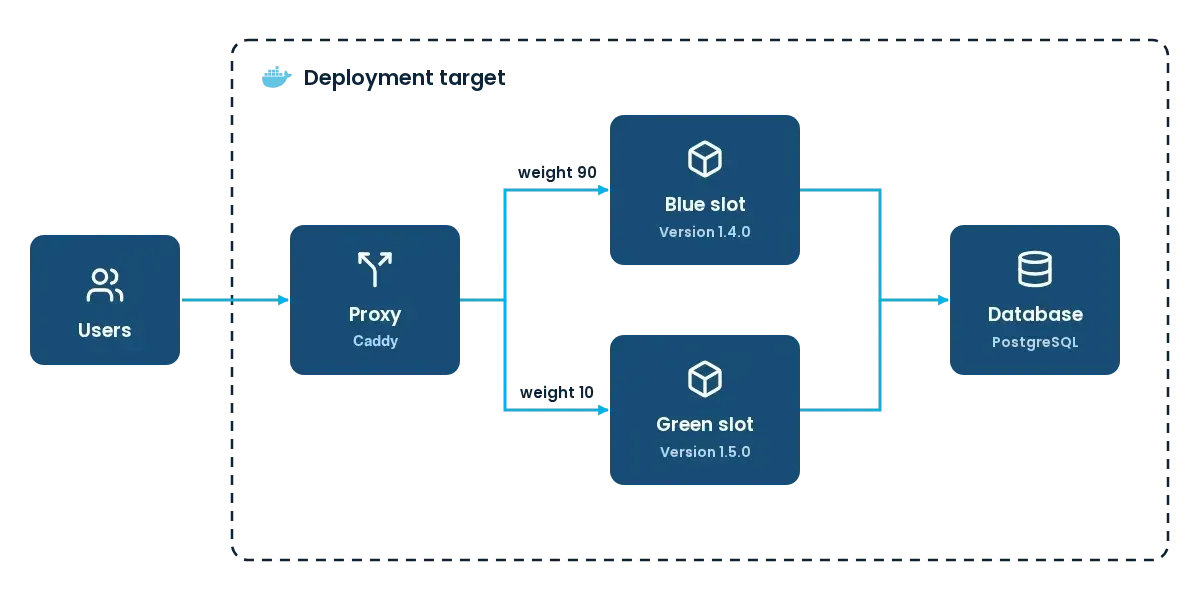
| Service | Deployment | Role |
|---|---|---|
caddy | Proxy | Receives all requests and splits them between the slots by weight. Its deployment creates the Docker network the other deployments join. |
routing | Proxy | Hands Caddy new weights without restarting it. |
postgres | Database | Holds the data both slots share. It stays deployed for the lifetime of the setup. |
backend | Backend with SLOT=blue | One slot, running one version of your application. |
backend | Backend with SLOT=green | The other slot, running the next version during a rollout. |
The blue and green slots are two deployments of the same Distr application, each on its own version.
Distr runs every deployment as a Docker Compose project of its own, so the deployments reach each other through a shared Docker network that the proxy deployment creates and the others declare as external. Docker Multi App Networking explains this pattern in general.
The proxy in this guide is Caddy, which supports weighted load balancing and health checks per slot. Any reverse proxy with weighted upstreams works the same way. The application in the slots is the backend of hello-distr, our example application.
Prerequisites
Section titled “Prerequisites”- A Docker deployment target. See Create a Deployment.
To run your own application in the slots instead of the hello-distr backend, it needs an endpoint that answers with a 2xx status once the application is ready to serve requests. It must not publish host ports or set container_name either, since both slots run on the same host at the same time. Only the proxy publishes ports.
Step 1: Create the proxy application
Section titled “Step 1: Create the proxy application”Create a Docker application named Proxy in Distr and add a version with the following Compose file and environment template.
The Caddyfile tab shows the Caddy configuration that the Compose file embeds as the caddyfile config.
services:  caddy:    image: 'caddy:2.11.9-alpine'    restart: unless-stopped    command: >-      sh -c 'until [ -f /etc/caddy/routing/Caddyfile ]; do sleep 1; done &&      exec caddy run --config /etc/caddy/routing/Caddyfile --adapter caddyfile'    ports:      - '80:80'    volumes:      - 'routing:/etc/caddy/routing'    networks:      - hello-distr
  routing:    image: 'caddy:2.11.9-alpine'    restart: unless-stopped    init: true    # Compose recreates a container when its environment changes, but not when only the content of a config does.    environment:      BLUE_WEIGHT: ${BLUE_WEIGHT}      GREEN_WEIGHT: ${GREEN_WEIGHT}    command: >-      sh -c 'cp /Caddyfile /etc/caddy/routing/Caddyfile.tmp &&      mv /etc/caddy/routing/Caddyfile.tmp /etc/caddy/routing/Caddyfile &&      until caddy reload --config /etc/caddy/routing/Caddyfile --adapter caddyfile; do sleep 1; done &&      touch /tmp/reloaded &&      exec sleep infinity'    configs:      - source: caddyfile        target: /Caddyfile    volumes:      - 'routing:/etc/caddy/routing'    healthcheck:      test: ['CMD', 'test', '-f', '/tmp/reloaded']      interval: 10s
configs:  caddyfile:    content: |      # Caddyfile
volumes:  routing:
networks:  hello-distr:    name: hello-distr
{ admin unix//etc/caddy/routing/admin.sock}
:80 { reverse_proxy backend-blue:5000 backend-green:5000 { lb_policy weighted_round_robin ${BLUE_WEIGHT} ${GREEN_WEIGHT} health_uri /health health_interval 2s }}BLUE_WEIGHT=100GREEN_WEIGHT=0What each part does:
networks.hello-distr.namegives the shared network a fixed name. Without it, Compose prefixes the network name with the project name. Distr sets a different project name for every deployment, so the other deployments would not find the network. Replacehello-distrwith a name unique to your application.caddyis the proxy. It waits until the Caddyfile is in theroutingvolume, then serves it and never restarts while you shift traffic.routingwrites the Caddyfile into theroutingvolume, tells Caddy to reload it through the admin socket in the same volume and then keeps running. A weight change recreates only this container. If Caddy took the weights itself, every change would recreate thecaddycontainer and drop all open connections, and Caddy has no production-ready way to watch its config file instead. After the reload, Caddy sends new requests according to the new weights and finishes the ones in flight.weighted_round_robinsplits the requests between the slots in proportion toBLUE_WEIGHTandGREEN_WEIGHT. A slot with weight0gets no new requests. Caddy also skips a slot whose health check onhealth_urifails, so if a slot goes down during a rollout, the other one takes over its share.backend-blueandbackend-greenare the network aliases the two slots register on the shared network. For your own application, adjust the port andhealth_uri.
Step 2: Create the database application
Section titled “Step 2: Create the database application”Keep the data both slots read and write in a deployment of its own, so replacing a slot leaves it alone. This example uses PostgreSQL. Create a Docker application named Database with this version:
services:  postgres:    image: 'postgres:18.6-alpine3.24'    restart: unless-stopped    environment:      POSTGRES_USER: hello-distr      POSTGRES_PASSWORD: ${POSTGRES_PASSWORD}      POSTGRES_DB: hello-distr    volumes:      - 'postgres:/var/lib/postgresql/'    networks:      - hello-distr    healthcheck:      test: pg_isready -h localhost -U hello-distr -d hello-distr      start_interval: 1s      interval: 5s      retries: 6      start_period: 30s
volumes:  postgres:
networks: hello-distr: external: truePOSTGRES_PASSWORD={{ .Secrets.POSTGRES_PASSWORD }}The password comes from a Distr secret, so the database and both slots share it and it never shows up in a deployment configuration. Since the slots put the password into a connection URL, choose one without characters that have a meaning in URLs, such as /, #, @ or :.
Step 3: Create the backend application
Section titled “Step 3: Create the backend application”Create a Docker application named Backend. Both slots run the same Compose file. A SLOT variable decides which alias the slot registers on the shared network and therefore which of the proxy’s weights applies to it.
services:  backend:    image: 'ghcr.io/distr-sh/hello-distr/backend:0.4.25'    restart: unless-stopped    environment:      DB_URL: postgresql://hello-distr:${POSTGRES_PASSWORD}@postgres/hello-distr?sslmode=disable    networks:      hello-distr:        aliases:          - backend-${SLOT:?SLOT must be blue or green}    healthcheck:      test:        [          'CMD',          'python',          '-c',          "import urllib.request; urllib.request.urlopen('http://localhost:5000/health', timeout=1)",        ]      interval: 5s
networks: hello-distr: external: trueSLOT=bluePOSTGRES_PASSWORD={{ .Secrets.POSTGRES_PASSWORD }}Distr reports the Docker health check as the deployment’s status, so a slot shows as Healthy once it can take traffic. The hello-distr backend answers on /health only once it reaches the database. Its image ships Python but neither curl nor wget, so the check calls the endpoint from Python. For your own application, use a command that exists in its image.
Add one application version per release as usual, each pinning its image tag, for example 0.4.8 and 0.4.9.
Step 4: Deploy the setup
Section titled “Step 4: Deploy the setup”Create the first three deployments on the same deployment target. The green slot follows with the first rollout. For the first deployment, follow Create a Deployment. For the others, use + Deploy App on the deployment target card.
-
Deploy the Proxy with
BLUE_WEIGHT=100andGREEN_WEIGHT=0. It creates the shared network. -
Deploy the Database.
-
Deploy the Backend with
SLOT=blueand the version you currently ship, and name the deployment after its slot, for examplebackend blue.
The order matters only for the network. A deployment that joins it before it exists fails with network hello-distr declared as external, but could not be found, and the controller retries it on its next cycle until the proxy has created the network.
Once all three deployments are Healthy, every request on port 80 goes to the blue slot, and http://<host>/latest-message answers with hello distr!.
Step 5: Roll out a new version
Section titled “Step 5: Roll out a new version”-
Deploy the Backend a second time with
SLOT=greenand the new version, and wait until the deployment is Healthy. Green now runs in the idle slot but gets no traffic yet. -
Update the proxy deployment to
BLUE_WEIGHT=90andGREEN_WEIGHT=10. One in ten requests now reaches the new version. Watch its logs and metrics and raise its share in as many steps as you like. -
To switch over, update the proxy deployment to
BLUE_WEIGHT=0andGREEN_WEIGHT=100. All requests now reach the new version, and the old one keeps running. -
If something goes wrong, set the weights back to
100and0while the blue slot is still deployed. All traffic moves back to the old version at once, since nothing has to start. -
Once you trust the new version, undeploy the blue slot or keep it for the next rollout.
The slots take turns from then on. For the next release, update the idle slot to the new version (or deploy it again if you undeployed it) and repeat the weight changes in the opposite direction.
Keep both versions compatible with the data
Section titled “Keep both versions compatible with the data”During a rollout both versions read and write the same database. Every database change a release brings has to work with the version before it:
- Add columns and tables in one release and start using them in the next.
- Remove what the old version still reads only in a release after the one that stopped reading it.
- Run migrations in a way that does not lock tables the running version needs.
A migration that breaks the old version also breaks the rollback, since rolling back only moves traffic and leaves the data as it is.
Automate the rollout
Section titled “Automate the rollout”Every step above is a deployment created or updated in Distr, so a release pipeline can run a rollout through the Distr API or the Distr SDK. Leave automatic updates off for the two slots, since they would move both slots to the latest version at the same time.
Related
Section titled “Related”- Docker Environment Variables: define the environment templates used for the weights and the slot
- Secrets Management: share credentials between the database and the slots
- Logs & Metrics: watch the new version while it receives a share of the traffic
- Mounting Configuration Files in Docker Compose (blog post): ship a config file like the Caddyfile inside the Compose file
- Adding Cron Jobs to a Docker Compose application (blog post): run scheduled jobs next to your application