
Artifact Download Analytics
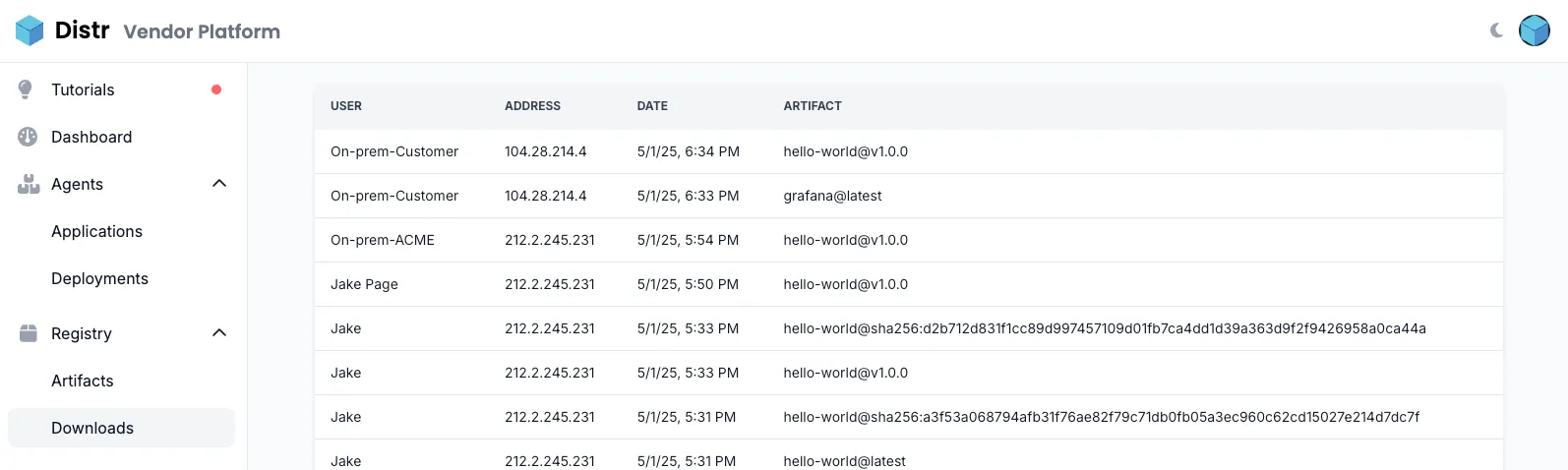
Every artifact pull from the Distr registry is recorded automatically. The Downloads page in the vendor portal gives you a chronological log of every pull, with filters to narrow down exactly what you’re looking for and a CSV export for offline analysis.
What gets tracked
Section titled “What gets tracked”Each pull event records:
| Field | Description |
|---|---|
| Date | Timestamp of the pull |
| Customer | The customer organization that performed the pull (if associated) |
| User | The name or email of the authenticated user |
| Address | The IP address the pull originated from |
| Artifact | The artifact name (e.g. myapp, backend) |
| Version | The tag or digest that was pulled (e.g. v1.2.0, sha256:d2b712d...) |
Filtering pull data
Section titled “Filtering pull data”The filter bar at the top of the Downloads page lets you narrow results by any combination of:
- Date range — Set a From and To date to limit results to a specific time window
- Customer — Select a specific customer organization
- User — Select a specific user account
- Address — Select a specific IP address
- Artifact — Select a specific artifact
- Version — When an artifact is selected, filter further by a specific tag or digest
All filters are combined and applied in real time. Click Reset to clear all filters at once.
Cascading version filter
Section titled “Cascading version filter”The Version dropdown only appears after you select an Artifact. It then shows only the tags and digests that belong to that artifact, keeping the filter options relevant.
Exporting to CSV
Section titled “Exporting to CSV”Click the Export CSV button to download the current filtered view as a CSV file. The export respects all active filters, so you can narrow results first and then export only the data you need.
The CSV file contains these columns:
| Column | Format |
|---|---|
| Date | ISO 8601 timestamp (RFC 3339) |
| Customer | Customer organization name |
| User | User display name |
| User email address | |
| Address | IP address |
| Artifact | Artifact name |
| Version | Tag or digest |
The file is named YYYY-MM-DD_artifact_pulls.csv using the current date.
Pagination
Section titled “Pagination”The Downloads page loads 50 pull records at a time. If more records match your filters, a Show more button appears at the bottom of the table to load the next batch. Changing any filter resets the list and loads fresh results.
Use cases for download analytics
Section titled “Use cases for download analytics”- Audit customer usage — Filter by customer to see exactly which artifacts and versions they have pulled and when
- Detect unusual activity — Filter by IP address to spot pulls from unexpected locations
- Track adoption — Filter by a new artifact version to see how quickly customers are pulling it after release
- Generate compliance reports — Export filtered pull data as CSV for security audits or license compliance reviews
- Debug access issues — If a customer reports problems pulling an artifact, check whether their pulls appear in the log and from which IP address