
Support Bundles
Support Bundles give your customers a structured way to share diagnostic data when they report an issue. A customer initializes a bundle, runs a single curl command on their deployment host, and the collected data appears in your Vendor Portal. Nothing is uploaded without the customer’s explicit approval.
How it works
Section titled “How it works”- The customer creates a support bundle from the Customer Portal, giving it a title and optional description.
- Distr generates a one-time
curlcommand tied to that bundle. The command is valid for 24 hours. - The customer runs the command on the affected host. An interactive script launches and shows the customer exactly what will be collected: the available Docker containers and the environment variable groups (with redacted values already masked). The customer can exclude any containers or env var groups before anything is sent.
- Once the script finishes, the bundle appears in the Vendor Portal with all collected resources attached.
- You and the customer can exchange comments on the bundle. When the issue is resolved, you mark it as resolved.
Vendor setup
Section titled “Vendor setup”Configure environment variables
Section titled “Configure environment variables”You can configure which environment variables should be collected from the host and containers. The script collects only the variables on this list. Variables marked as Redacted have their values replaced with [REDACTED] in the collected data. The customer sees the redacted placeholder before confirming the upload.
If no environment variables are configured, the script only collects container logs from running containers.
In the Vendor Portal sidebar, navigate to Support Bundles, then click Settings.
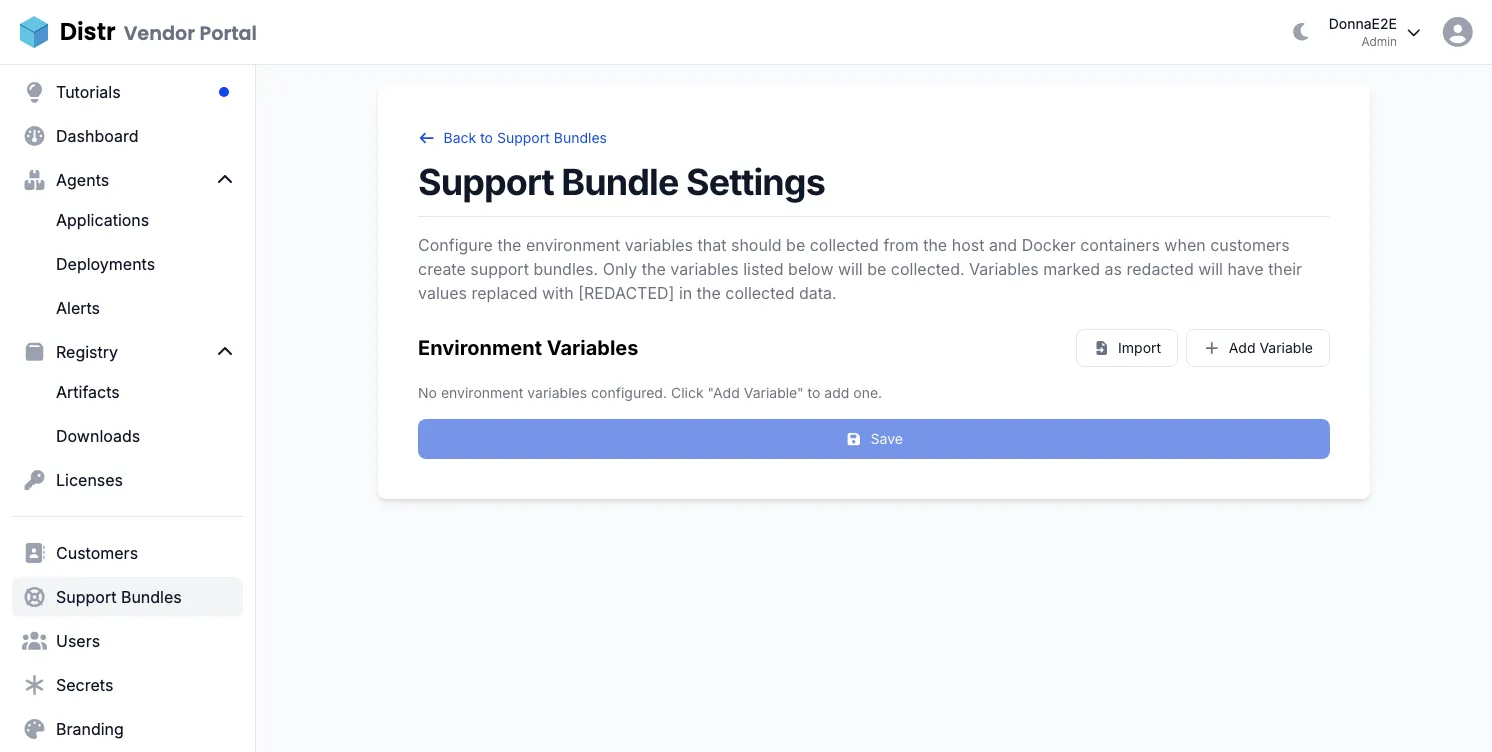
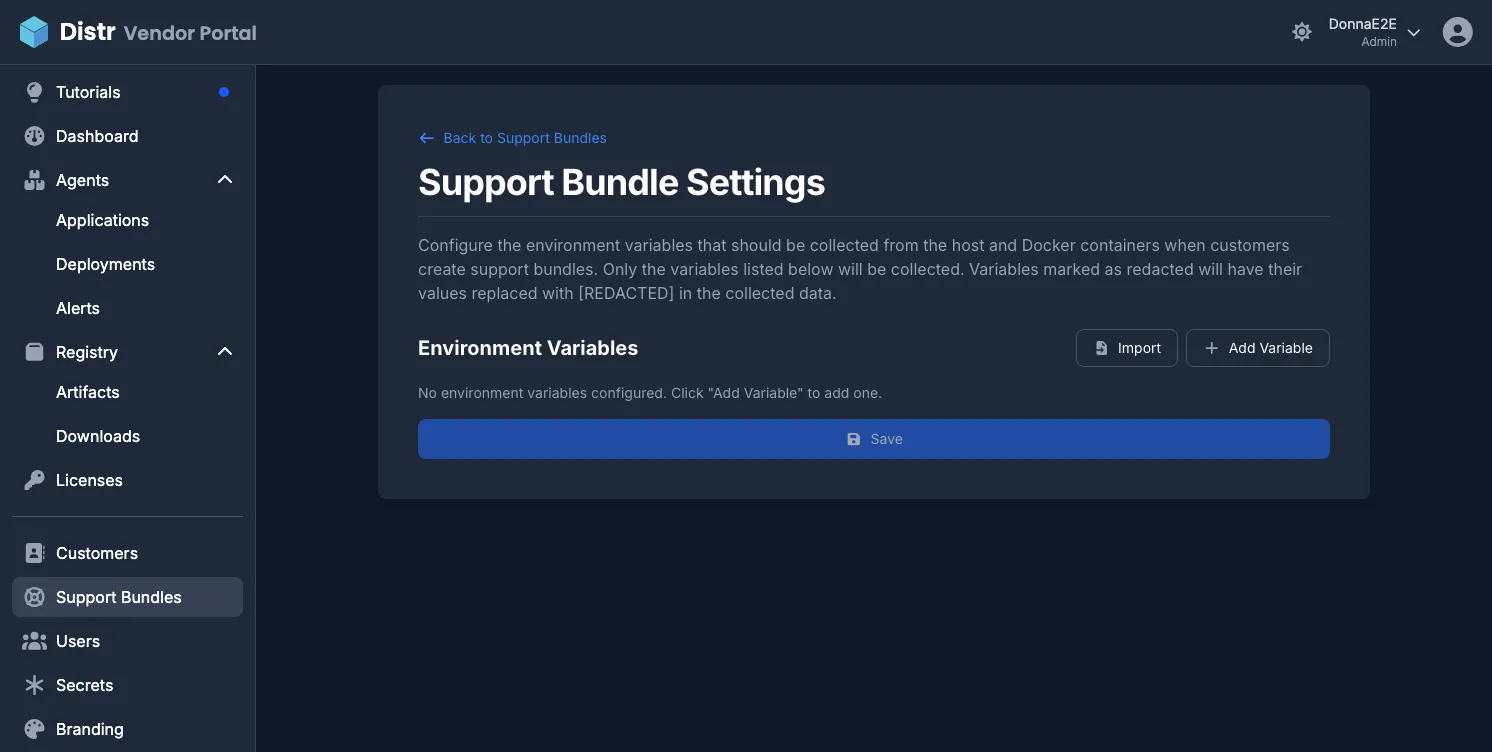
To add variables manually, click Add Variable and enter the variable name. To import from an existing file, click Import and paste the contents of a .env or config file. Lines in the format KEY=value or KEY: value are accepted; only the variable name is imported, not the value. Lines starting with # are ignored.
Toggle Redacted for any variable whose value should not appear in collected bundles.
Click Save when done.
Enable the feature for a customer
Section titled “Enable the feature for a customer”Support Bundles must be enabled per customer organization before customers can create bundles. See Enabling features per customer for how to do this.
Reviewing support bundles
Section titled “Reviewing support bundles”In the Vendor Portal, navigate to Support Bundles to see all bundles across all customers.
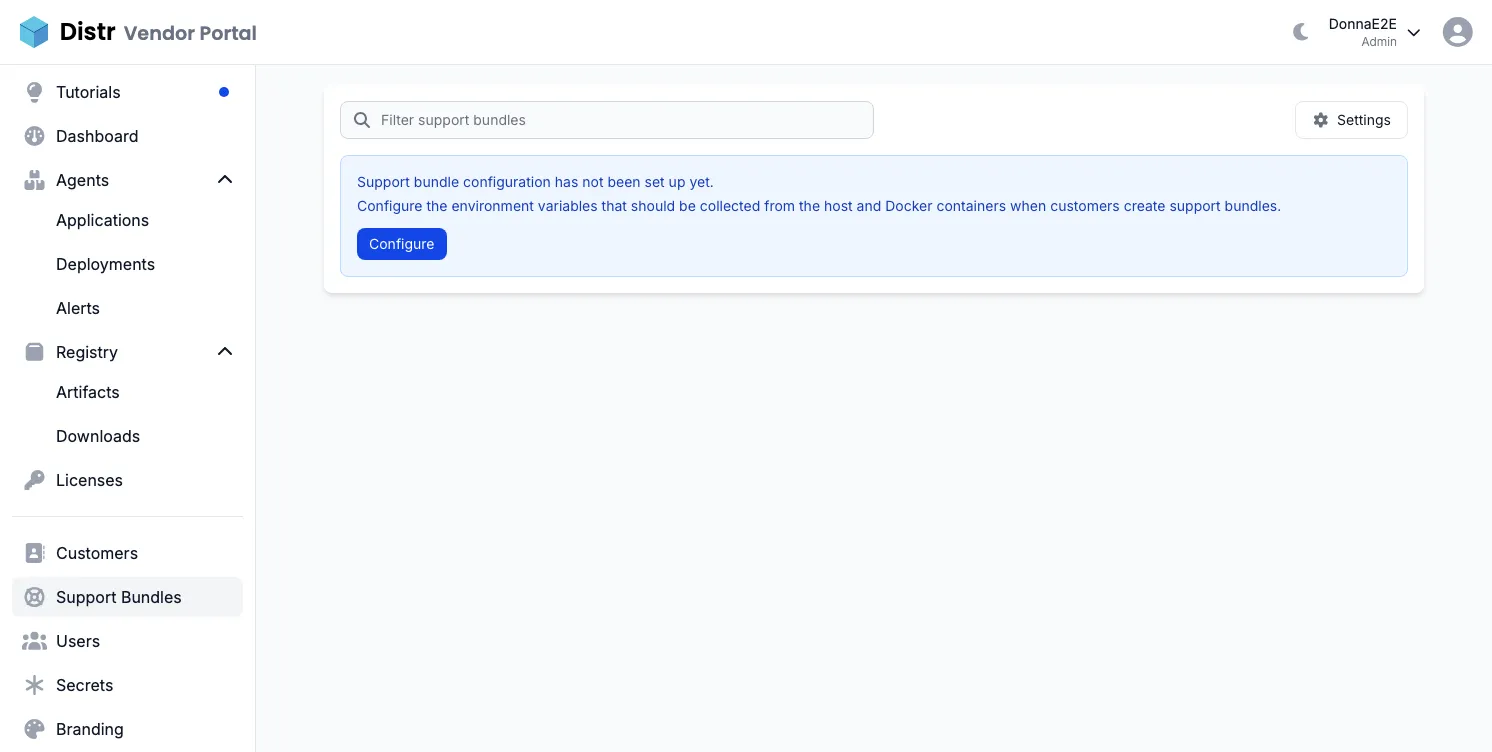
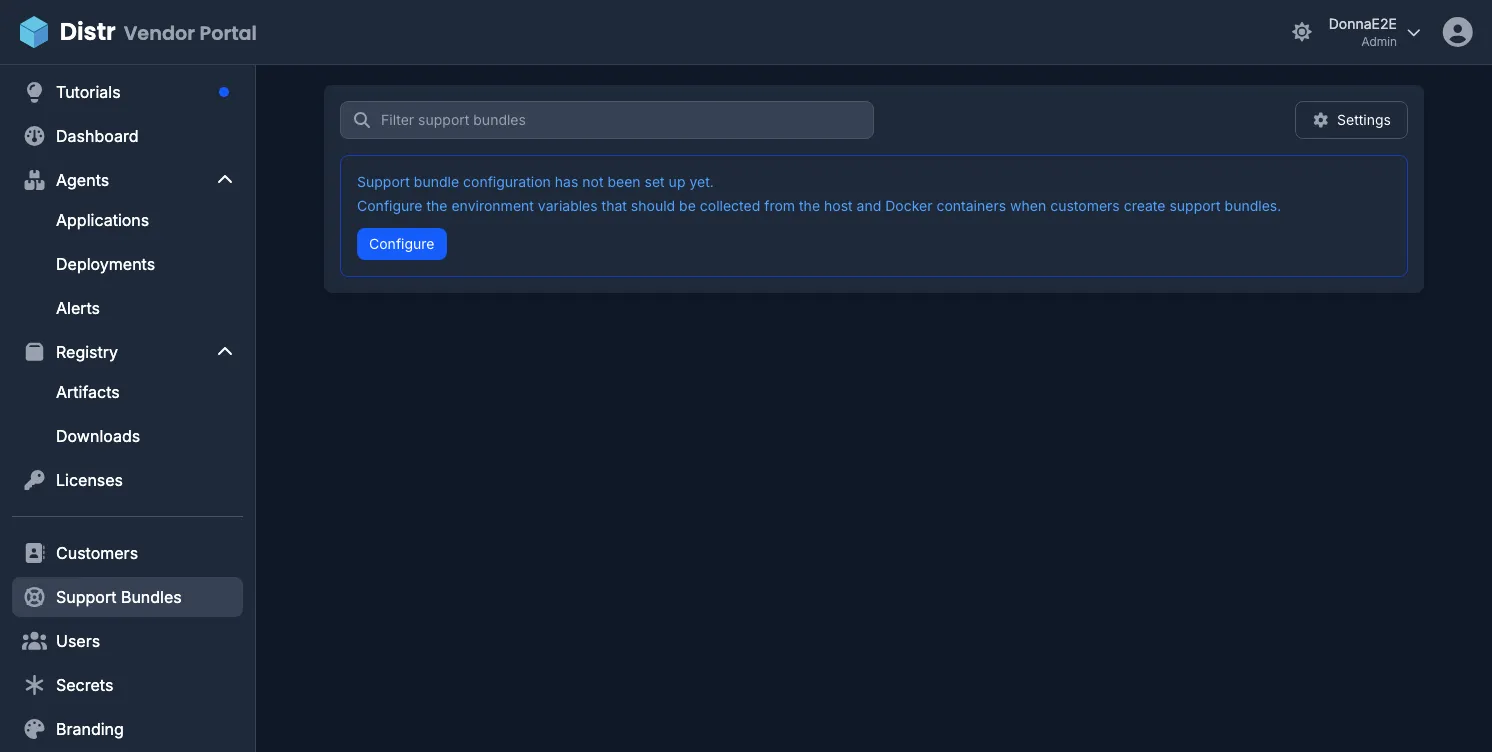
The list shows each bundle’s title, customer, status, resource count, comment count, and when it was last updated. Click any bundle to open the detail view.
In the detail view:
- Collected resources are listed under Resources. Click any resource name to expand and read its content.
- Comments appear below the resources. Both vendor and customer users can leave comments.
- Click Mark as Resolved to close the bundle once the issue is addressed.
Customer flow
Section titled “Customer flow”When Support Bundles is enabled for a customer organization, customers see Support Bundles in their Customer Portal sidebar.
To create a bundle:
- Navigate to Support and click New Support Bundle.
- Enter a Title (required) and an optional Description of the issue.
- Click Create. Distr generates a
curlcommand valid for 24 hours. - Run the command on the affected host. The script will:
- List available Docker containers and prompt for which ones to exclude
- Show all environment variable groups that will be collected, with redacted values already masked, and prompt for which groups to exclude
- Upload the remaining data to Distr
- Nothing is sent until the customer confirms each section.
Bundle status lifecycle
Section titled “Bundle status lifecycle”| Status | Meaning |
|---|---|
| Initialized | Bundle created, collection script not yet run. Secret valid for 24 hours. |
| Created | Collection script ran successfully. Resources are attached and ready to review. |
| Resolved | Vendor has marked the bundle as resolved. |
| Canceled | Bundle was canceled before data was collected. |
Either party can cancel an Initialized bundle. Only vendors can resolve a bundle. Once resolved or canceled, a bundle cannot be reopened.