
Artifact Entitlements
This guide walks you through how to use Artifact Entitlements to control which artifacts and tags your end-customers can access and pull from your Distr registry.
With Artifact Entitlements, you can control access to specific artifacts and their tags in your registry. You can grant access to all tags, specific tags, or future tags for one or multiple artifacts. Once you create your first artifact entitlement, customers will only see artifacts they have a valid entitlement for.
Use case
Section titled “Use case”Artifact Entitlements enable you to:
- Control registry access — Restrict which container images, Helm charts, and other artifacts customers can pull
- Tag-based access control — Grant access to specific tags (e.g., only stable releases) or all tags including future ones
- Tiered artifact access — Offer different artifact sets based on customer subscription tiers
- Multi-artifact bundling — Bundle multiple artifacts in a single entitlement for simplified management
Entitlement features
Section titled “Entitlement features”- Each entitlement can include one or multiple artifacts.
- Each entitlement can grant access to specific tags, all tags, or all tags including future tags.
- A customer can be associated with multiple entitlements.
- Entitlement edits are reflected in the customer portal in real time.
- Before creating your first entitlement, all customers can see all artifacts. After the first entitlement is created, customers only see entitled artifacts.
How to use it
Section titled “How to use it”If you don’t see the feature yet, make sure you’re on a Pro plan or Pro Trial. Once you’re in, here’s how it works:
- Create a customer: If none exist, create a customer first
- Navigate to Licenses in the sidebar
- Click the customer you want to create an entitlement for
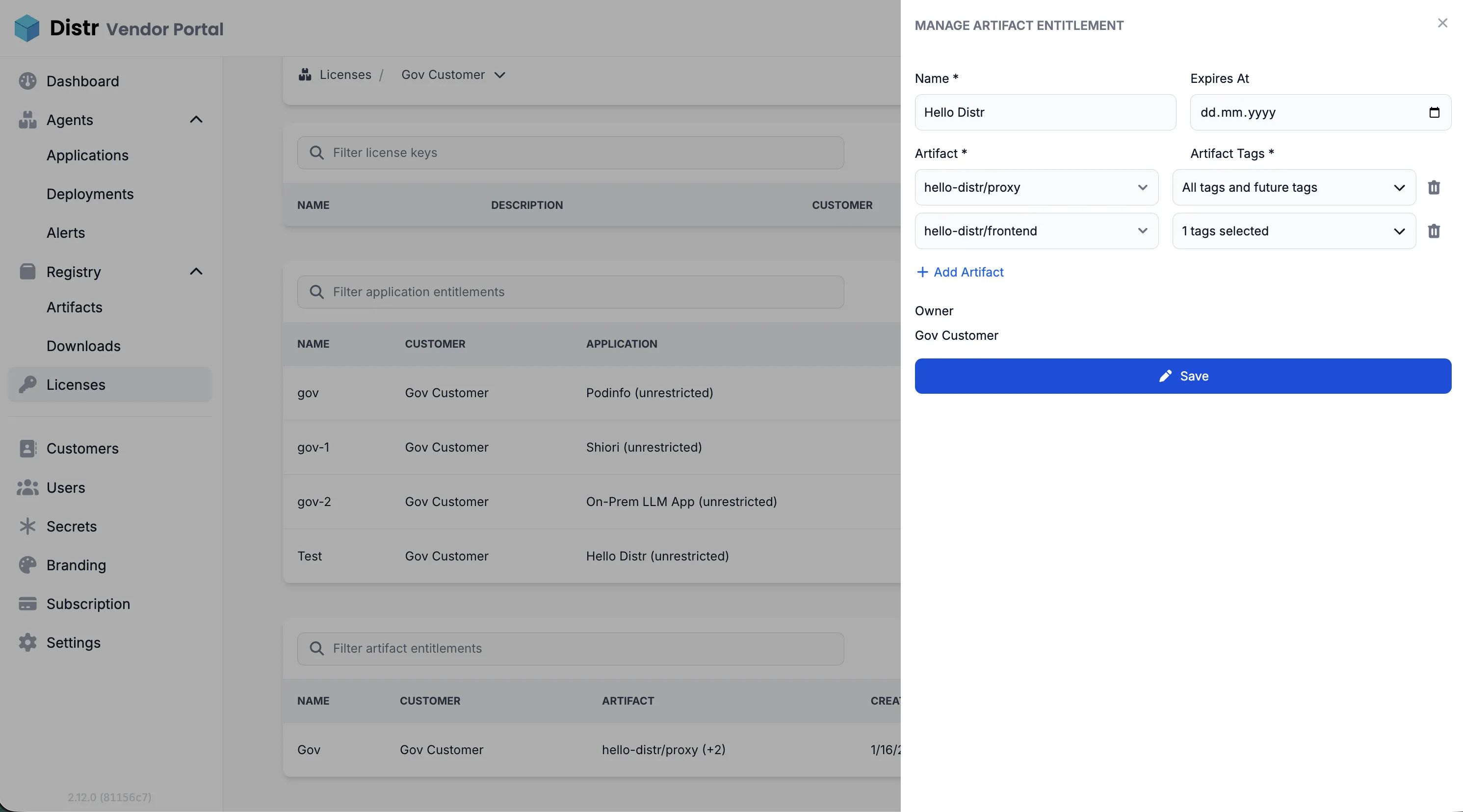
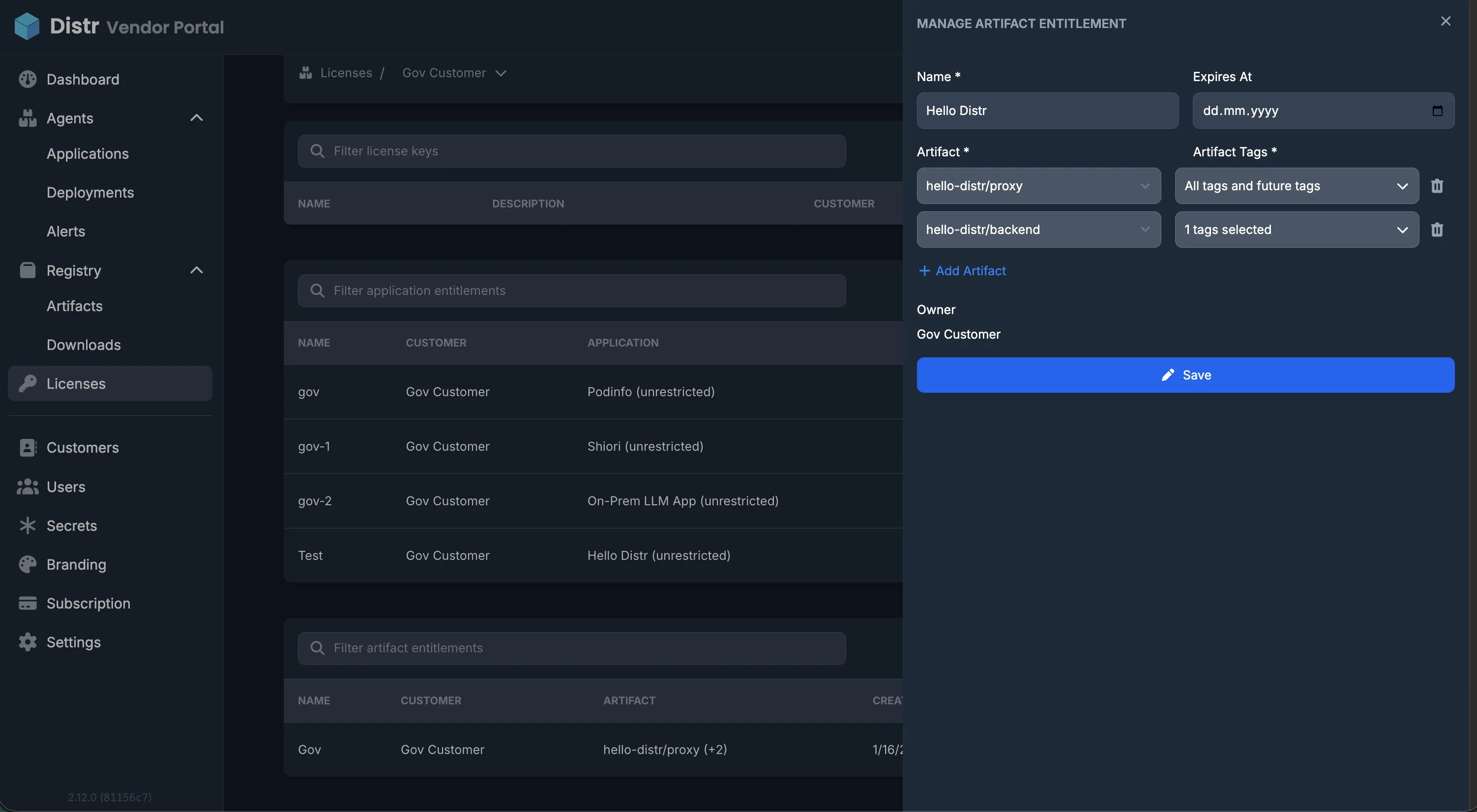
- Select the Artifact Entitlements tab and click “Create Entitlement”
- Give it a name (required)
- Set an expiration date (optional)
- Select an artifact (required) — choose which artifact(s) to include
- Add multiple artifacts by clicking ”+ Add Artifact”
- Choose artifact tags (required):
- All tags and future tags — grants access to all current and future tags
- Specific tags — select individual tags to grant access to
- Save — hit “Save” and you’re done
The customer can now access and pull the assigned artifacts and tags directly from your registry through their customer portal.
Managing existing entitlements
Section titled “Managing existing entitlements”You can view and manage all artifact entitlements for a customer from their detail view in the Licenses section:
- View entitlements — See all entitlements with name, associated artifacts, and expiration
- Edit entitlements — Click an entitlement to modify its settings
- Filter — Use the search bar to filter by name or artifact
Best practices
Section titled “Best practices”- Start with broad access — Consider starting with “All tags and future tags” for new customers, then refine as needed
- Set expiration dates — Use expiration dates for time-limited access or trial periods
- Bundle related artifacts — Group related artifacts in a single entitlement for easier management
- Review regularly — Periodically review entitlements to ensure they match your current access policies