Application Licenses
This guide walks you through how to use Application Licenses to control which application versions your end-customers can access and deploy through Distr agents.
With Application Licenses, you can link a license to a customer, allowing access to specific application versions, whether it’s one, a select few, or all available versions. You can name the license, set an expiration date, and assign it to a particular customer, giving you granular control over which applications and versions each end-customer can use.
License flow diagram
Section titled “License flow diagram”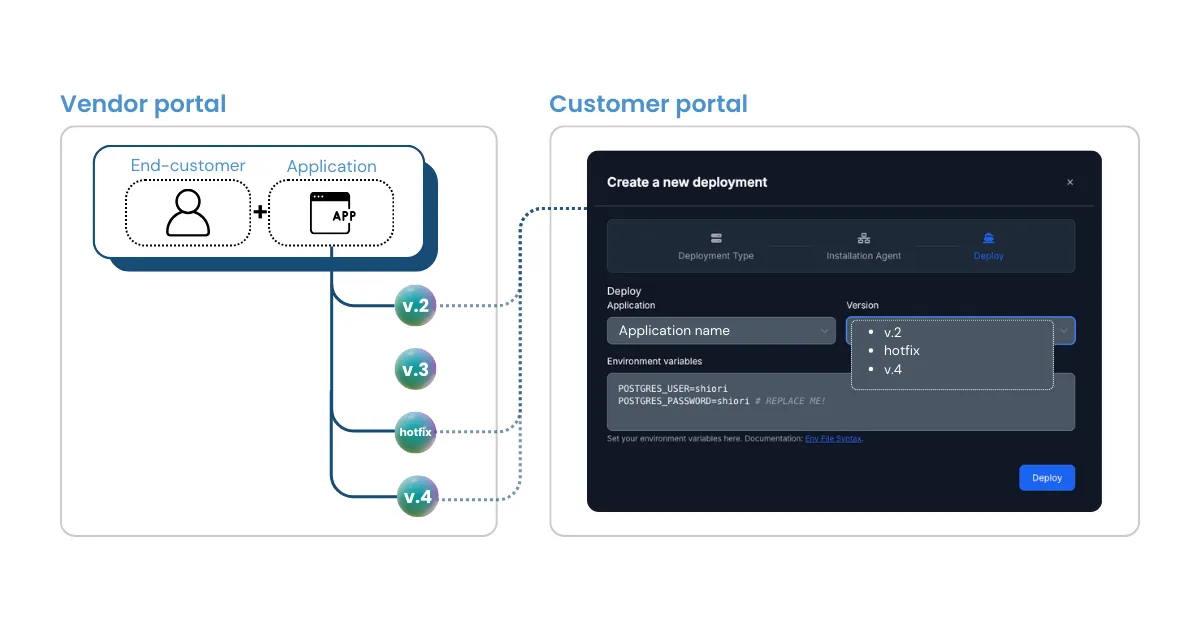
Use case
Section titled “Use case”Many vendors offer tiered pricing plans with different features and functionality. For those serving on-premises environments, granular control over version access is crucial, whether it’s delivering a specific feature set, pointed hotfixes to select customers or offering early access to new application versions. This level of precision is exactly what Application Licenses deliver.
License features
Section titled “License features”- Each license is linked to a single
customer/applicationpairing. - Each license grants a customer access to one or multiple application versions.
- Once an application version has been granted via a license, it can’t be revoked (currently working on the version revoking functionality).
- A customer can be associated to multiple licenses.
- License edits are reflected in the customer portal in real time.
How to use it
Section titled “How to use it”If you don’t see the feature yet, make sure you’re on a Pro plan or Pro Trial. Once you’re in, here’s how it works:
- Create a customer: If none exist, create a customer first
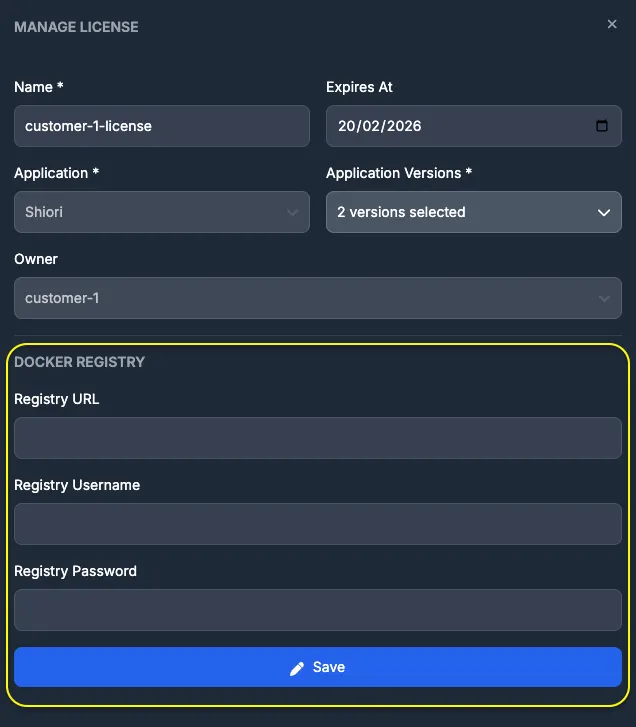
- Navigate to the “Licenses” tab in the sidebar, then select “Application Licenses”
- Click “Create License”
- Give it a name
- Set an expiration date (optional)
- Assign to an application
- Choose the version/s of the app you would like to grant the customer access to
- Link it to a customer
- Save: Hit “Save” and you’re done!
The customer can now access and deploy the assigned application version/s directly from their customer portal.
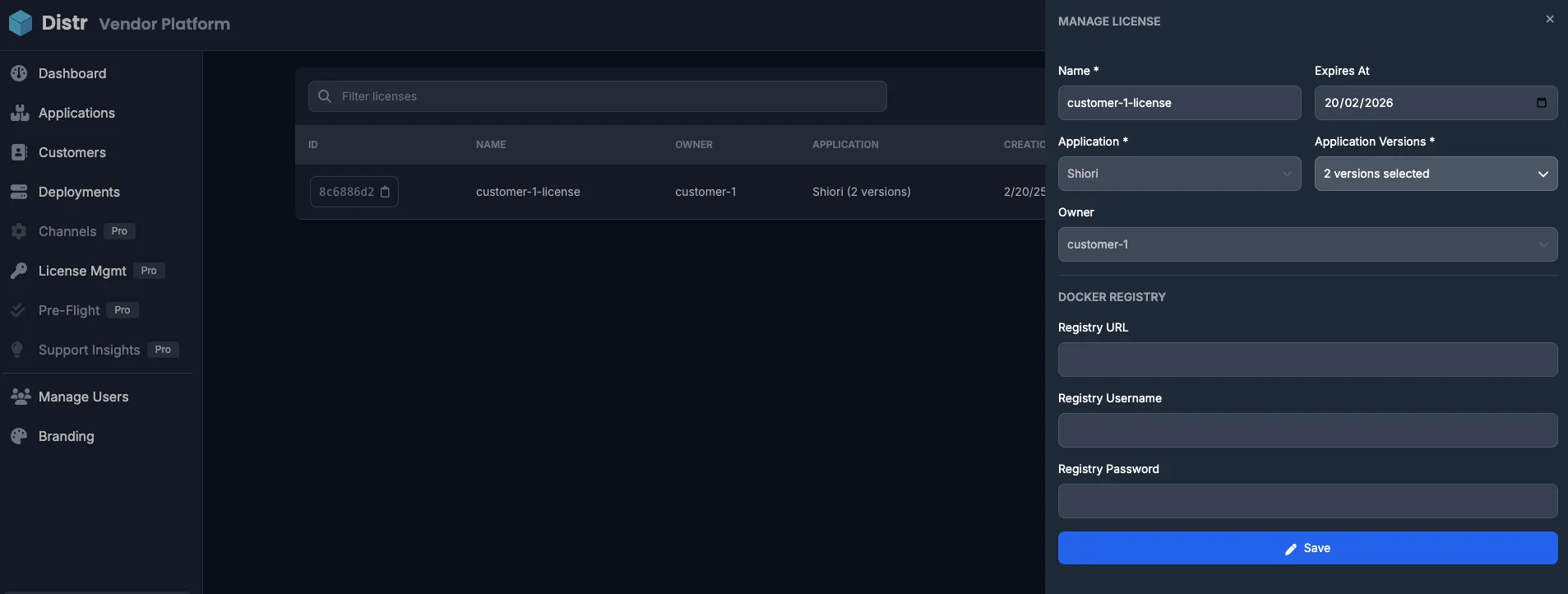
OCI registry authentication
Section titled “OCI registry authentication”If your images are stored in a private OCI registry, you’ll need to provide access credentials. You can configure these credentials in the lower section of the license configuration panel. Once set, the application versions will be available at the deployment target for as long as the license is valid.
Licensing walkthrough video
Section titled “Licensing walkthrough video”